
Product listing
“Place this bottle on pale stone in soft window light. Keep the cap, label and proportions.” Compare the Nano Banana image with the pack shot, especially where the lettering curves around the bottle.
Sign in to claim 100 starter credits and begin creating
Ways to start
Nano Banana is Google’s family of image generation and editing models. What you give it depends on how much of the picture you have already.
Describe a yellow reading lamp on a walnut desk at dusk. Tell Nano Banana how close the camera is so the right details fill the frame.
Upload the lamp you sell. Ask Nano Banana to change the tabletop and keep the shade and switch. Compare the result with the original.
Give Nano Banana one photo for the lamp and one for the room. Specify which image supplies the light, especially when only one scene is sunlit.
Version guide
The quickest Nano Banana model suits a first draft. For a series of edits, choose by what has to survive the next revision. Here is how the five names map to Gemini models.
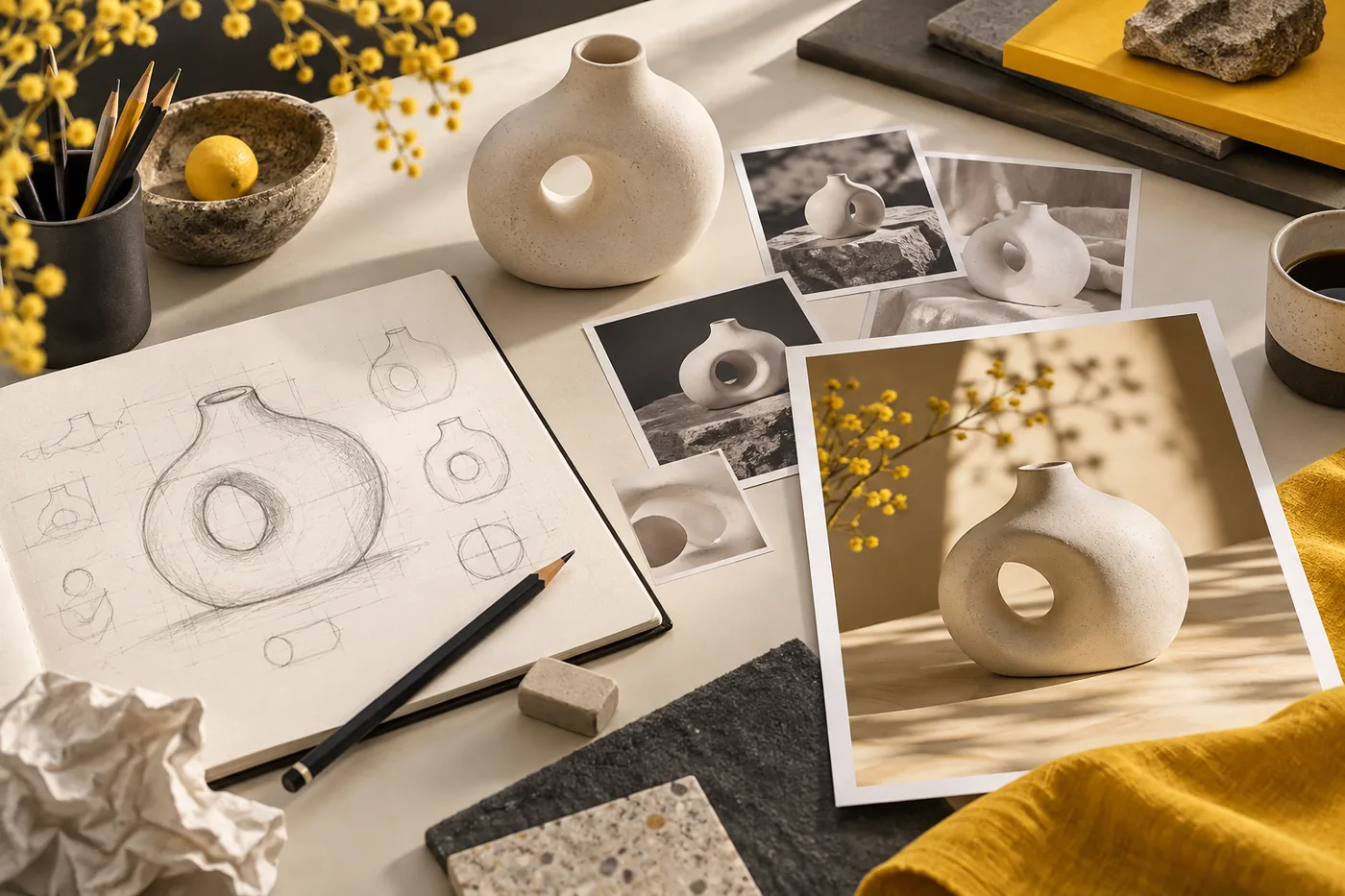
Built on Gemini 3.6 Flash, this Nano Banana update keeps lettering and subjects more consistent across edits. Use it when the room, crop and headline change in sequence. Output sizes include 1K, 2K and 4K.
Gemini 3 Pro Image suits a brief with several constraints. For a bilingual poster, specify the headline, its position, the lens angle and the key light. Pro offers up to 4K output.
Gemini 3.1 Flash Lite Image suits 1K concepts and simple edits. Explore tabletop colors here. For a long sequence with several references, use 2.1.
Gemini 3.1 Flash Image combines fast generation, image search and multiple references at sizes from 512px to 4K. This Nano Banana model is the generation before 2.1.
Gemini 2.5 Flash Image introduced conversational photo edits. Change a jacket or move someone outdoors while keeping their likeness. This is the original Nano Banana in early photo-editing tutorials.
Nano Banana reference photos
A single product photo can anchor a set of Nano Banana images. Decide what each picture needs to show before you change the setting, the light or the layout.

Use a product shot for the shape and a room photo for the setting. Ask Nano Banana to put the lamp at the near end of the table, switch facing forward. If both pictures contain lamps, identify yours by its yellow shade.
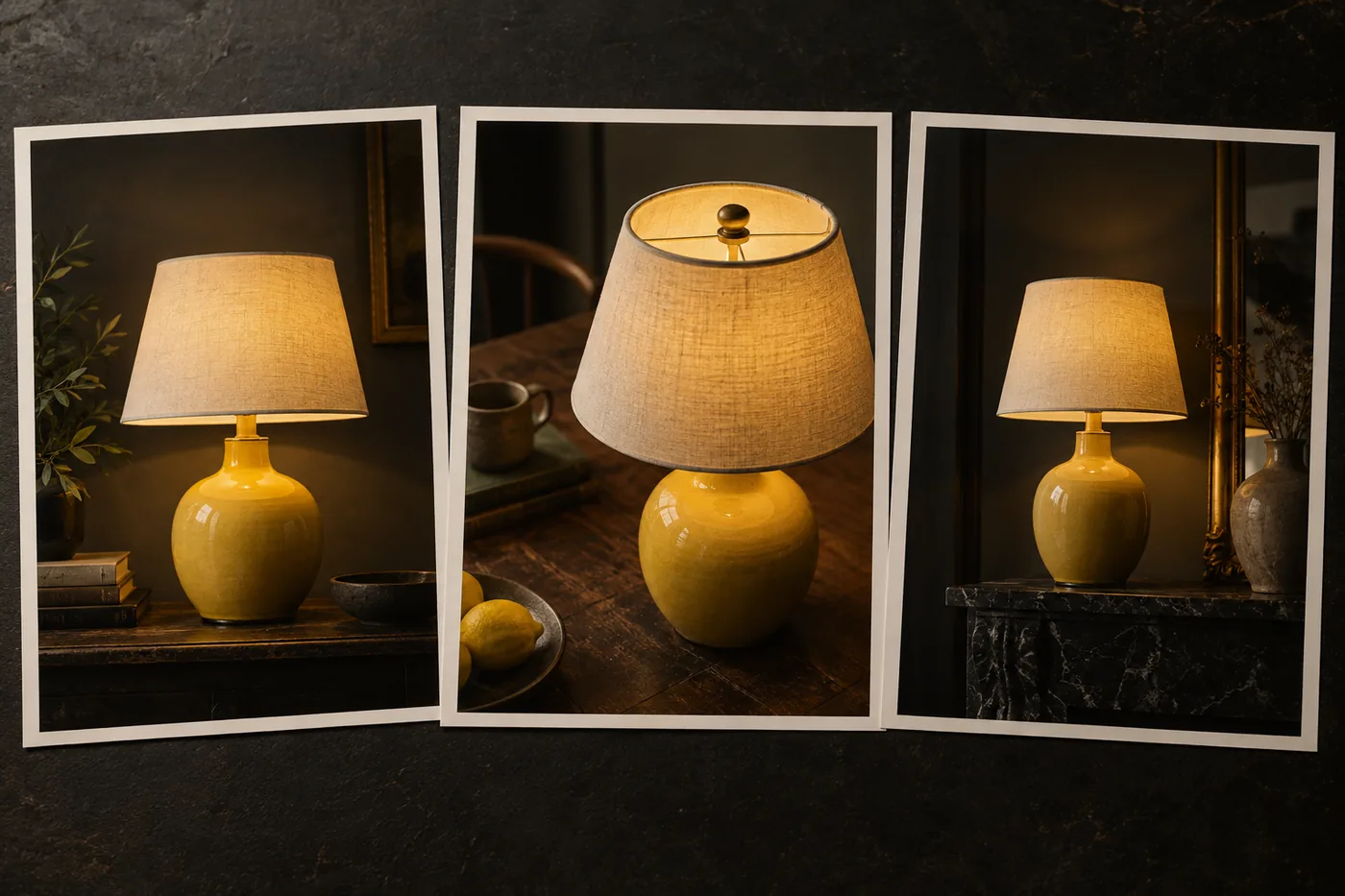
Pick a detail that reveals a mismatch, such as the seam on the shade. In the next Nano Banana edit, ask for evening light and keep that seam visible. Compare it with the source before using the edited image for another scene.
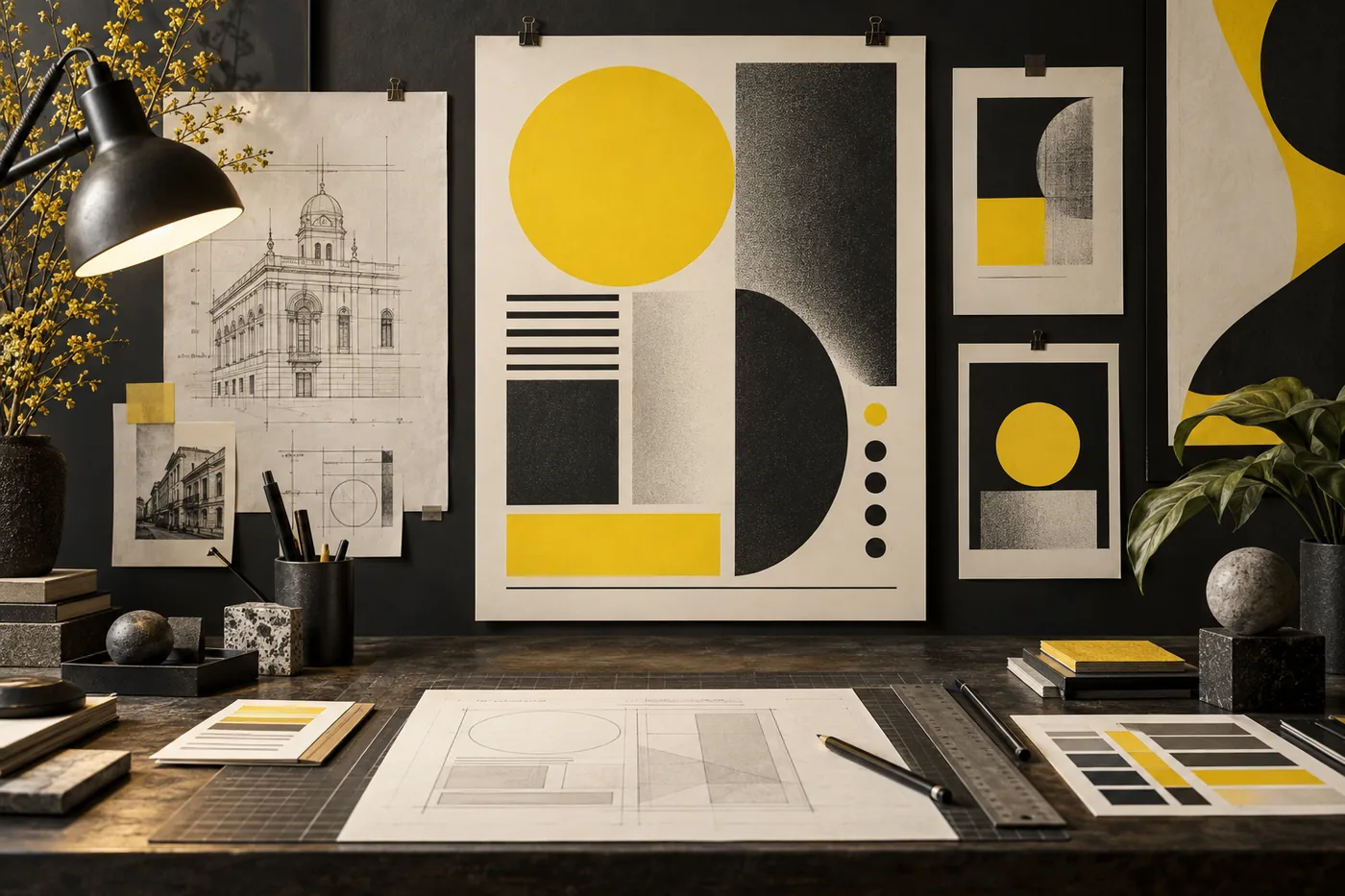
Move the lamp to the lower right and leave plain wall at the top. Give Nano Banana the exact headline in quotes. For a longer translation, request a second line and check the words at the size a shopper will see.
Editing with Nano Banana
Choose a photo whose details you know. A scratch or seam you recognize gives you a quick way to judge a Nano Banana edit.
Use a photo with a clear outline and the whole lamp in view. Nano Banana needs a visible handle or foot to reproduce its shape.
Try “Replace the white tabletop with dark walnut. Keep the lamp, its size and the camera position.” That tells Nano Banana exactly which surface to change.
Zoom in where the base meets the desk. If the lamp appears to float, ask Nano Banana for a soft contact shadow directly beneath the base.
A square listing and a wide banner need different spacing. Tell Nano Banana where the lamp and headline belong before you refine the small details.
Creative briefs
Start with the example closest to your project, then replace the subject and the details you want to keep.
“Place this bottle on pale stone in soft window light. Keep the cap, label and proportions.” Compare the Nano Banana image with the pack shot, especially where the lettering curves around the bottle.
Give Nano Banana a well-lit portrait. Request an outdoor setting with the same hairline, glasses and expression. Compare the faces side by side at the same size.
“Set ‘NIGHT MARKET’ in two lines above the stalls. Keep the lower third open for the date.” Give Nano Banana a final line break if a place name needs to stay together.
Give Nano Banana the steps for folding a paper boat, one panel per fold. Check the paper’s orientation in each panel so a reader can follow the next step.
“Replace the armchair beside the window with this oak chair. Keep the window width and floorboards.” Use the Nano Banana result to judge its color and silhouette, then use the chair’s measurements to check fit.
Choose a wide view, a close-up and an over-the-shoulder shot. Give Nano Banana the same character reference for each frame. Name the hand that holds the prop so you can check continuity across the cut.
Nano Banana FAQ
A few details matter when you follow an older tutorial or take an image from a draft to its final size.
Nano Banana 2.1 arrived on October 6, 2026. Its model ID is gemini-nano-banana-2.1. Look for that name when a guide describes the Gemini 3.6 Flash–based image model. A guide that names Gemini 3.1 Flash Image is describing version 2.
Gemini 2.5 Flash Image is the original Nano Banana. The number belongs to the Gemini model name. The second-generation image model carries the name Nano Banana 2 and uses Gemini 3.1 Flash Image.
Give 2.1 and Pro the same source and headline. Check each Nano Banana image for hierarchy, spelling and placement. Then request one headline change. The second pass shows how well each version preserves the approved photo and spacing.
Use a smaller draft to choose the framing. Larger Nano Banana output helps when a label needs to stay readable or you want a close crop. Check the crop at its final display size.
Yes. Give Nano Banana the approved translation, keep the reading order and allow space for longer lines. Check names, dates and accents against the copy before sharing.
Version 2.1 can draw on Google Search. Give Nano Banana your labels, values and units. Read the finished diagram as if you were following its instructions, checking each arrow and number against the source.
Each new image can carry small differences from the last. Return to the last Nano Banana image where the detail was right. Include the original reference, identify the detail by its position and request just the outstanding change.
In a tutorial about camera angles, lettering or lighting, Pro means the Gemini 3 Pro Image model. In the pricing section, Pro is the name of a credit plan. Use the model name when comparing Nano Banana images from different tutorials.
Choose a monthly, yearly, or one-time credit plan for the creative work you want to do.
Cancel anytime
Your first image
Bring a picture to Nano Banana and name one edit you could spot at a glance. Try a new surface, a different light or more room for a headline.