
Start with text
Describe one visible moment, the subject, the motion, and the camera direction.
Take a product image, character concept, or written scene into motion. Start with Veo 3.1 Lite, then choose the video model that fits your story.
Text to video · image to video
A finished image can set the subject and palette. Add a simple action and camera move to explore how the idea feels in video.
Describe one visible moment, the subject, the motion, and the camera direction.
Upload a still when the opening frame or visual identity should guide the clip.
Switch between available models and review the settings before generating.
Make a short first version, watch it, and refine one part of the brief at a time.
AI video ideas
These planning illustrations suggest types of clips to brief; they are not outputs from the default video model.
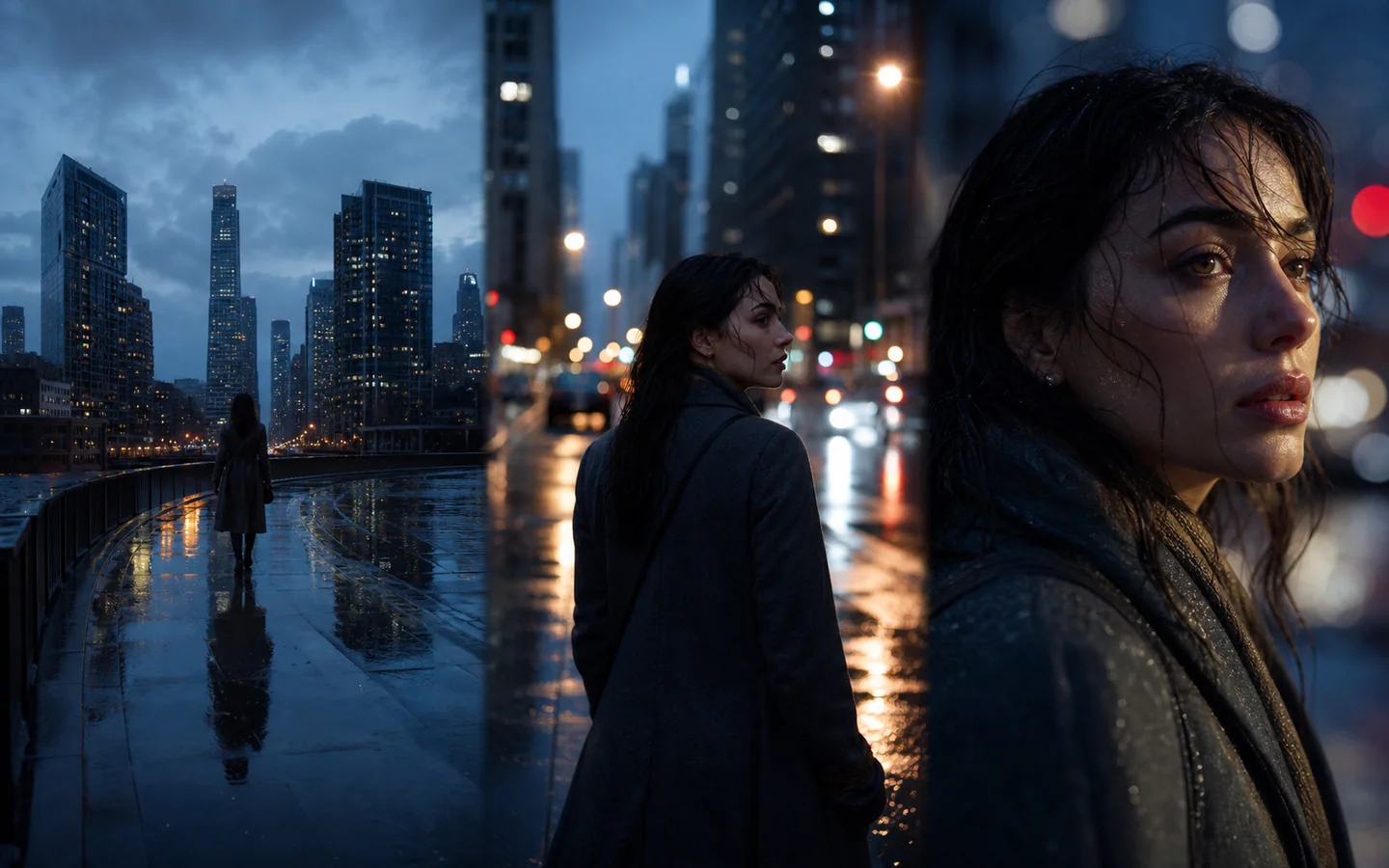
Use a clear opening frame and one action to guide a story shot.
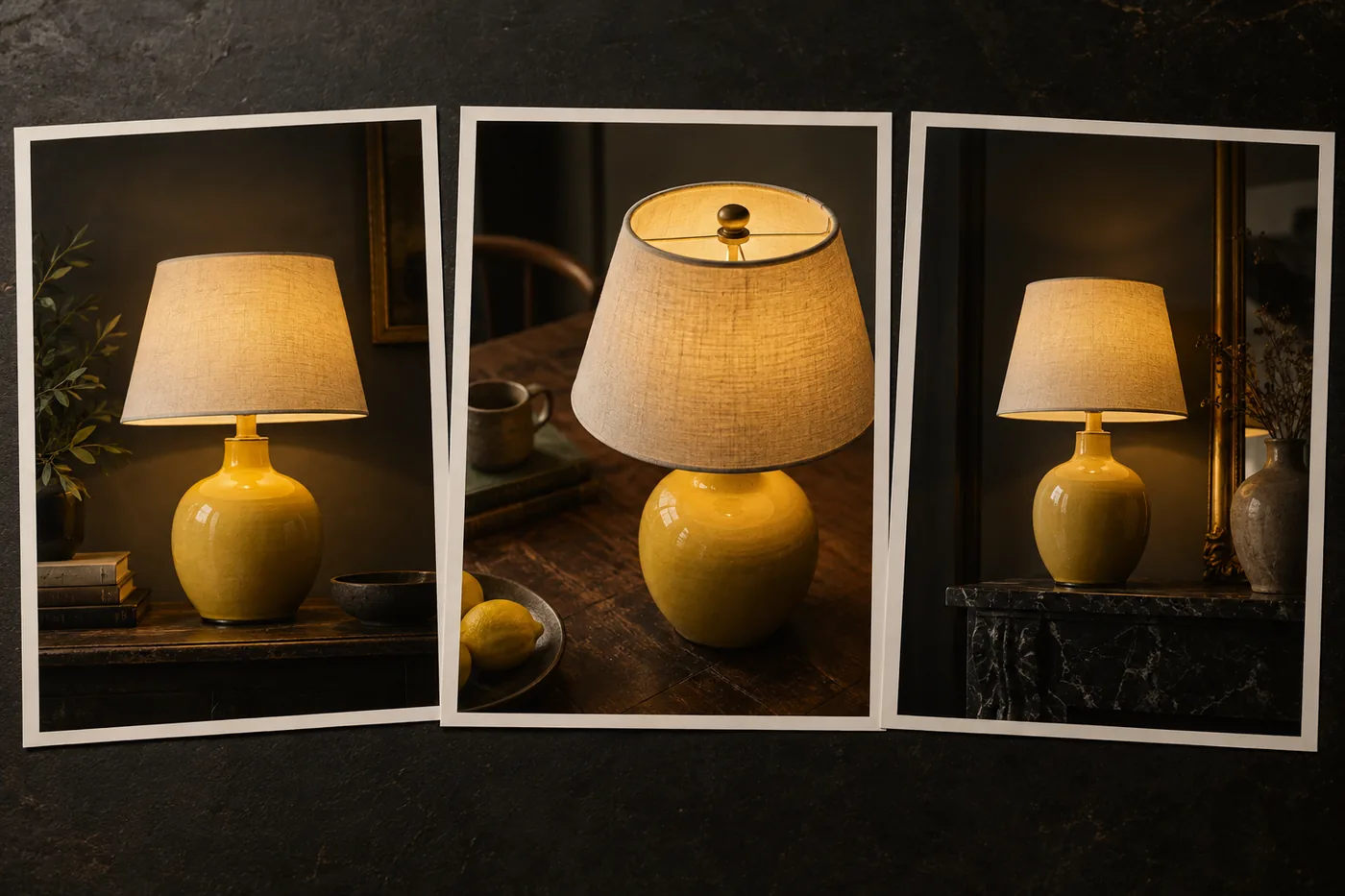
Describe how the camera moves while the recognizable product stays consistent.
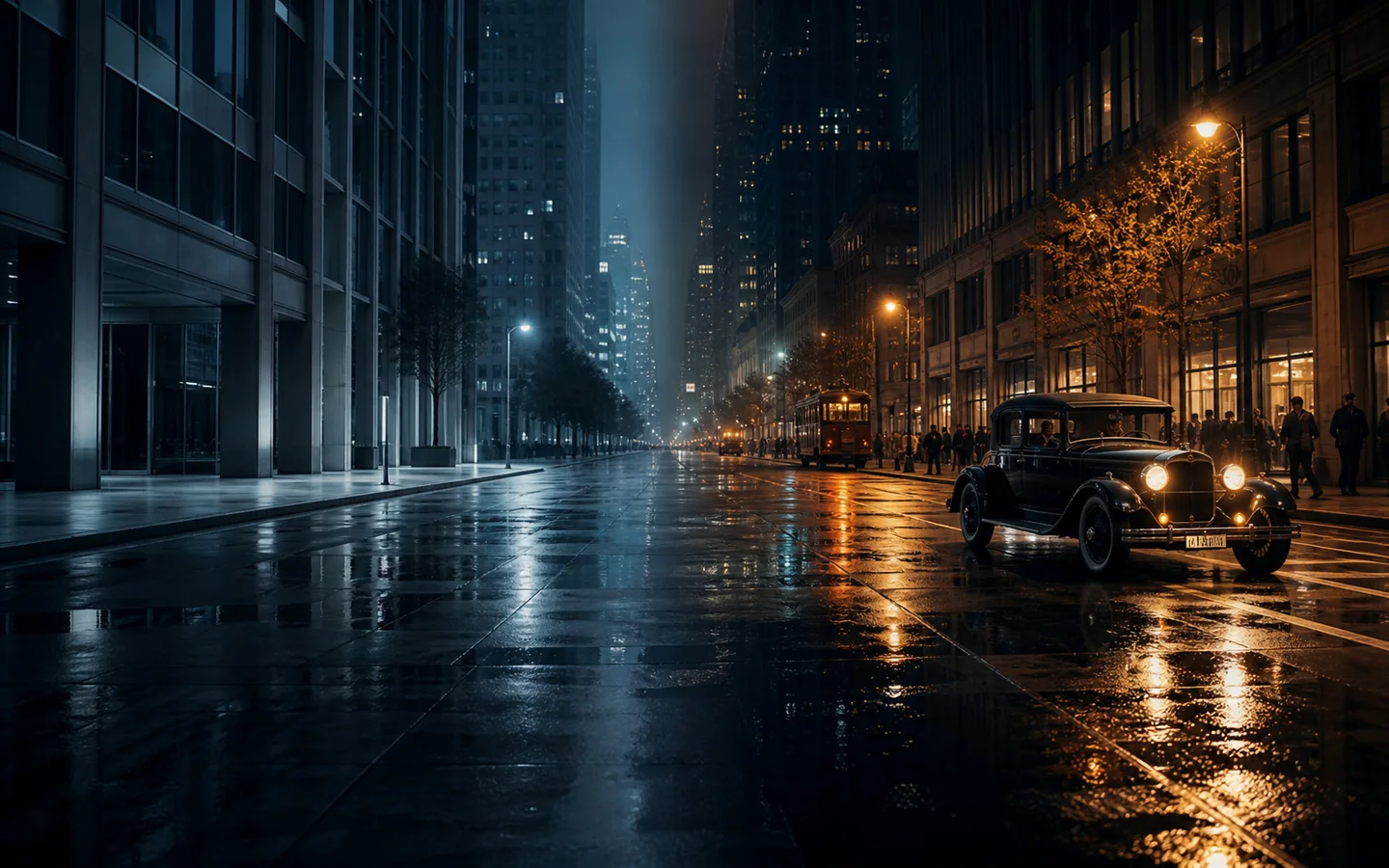
Adjust one part of the setting or framing after reviewing the first clip.
How to make an AI video
Start with a clear brief, choose a model in the Nano Banana workspace, and review the first result before refining it.
01
Write a scene from scratch or add an image to define the first frame.
02
Describe the action, pace, camera move, and details that should stay consistent.
03
Choose a video model and review its available format and duration controls.
04
Play the result, then adjust one movement or framing choice for another pass.
AI video generator FAQ
Start from a prompt or image and pick a video model for the motion you need.
Yes. You can try the generator and make a video. Available settings and later usage depend on the chosen model.
Yes. Describe a scene and its motion, then choose a model that supports text-to-video.
Yes. Select a supported image-to-video mode, upload an image, and describe the movement you want.
The generator opens with Veo 3.1 Lite. Other available choices include Wan 3.0 and Seedance video models.
Keep the first brief focused on one scene. State the subject, action, camera move, and details to preserve.
Create your first AI video
Write one short scene or upload a still, then try the AI video generator free.